Timer screen
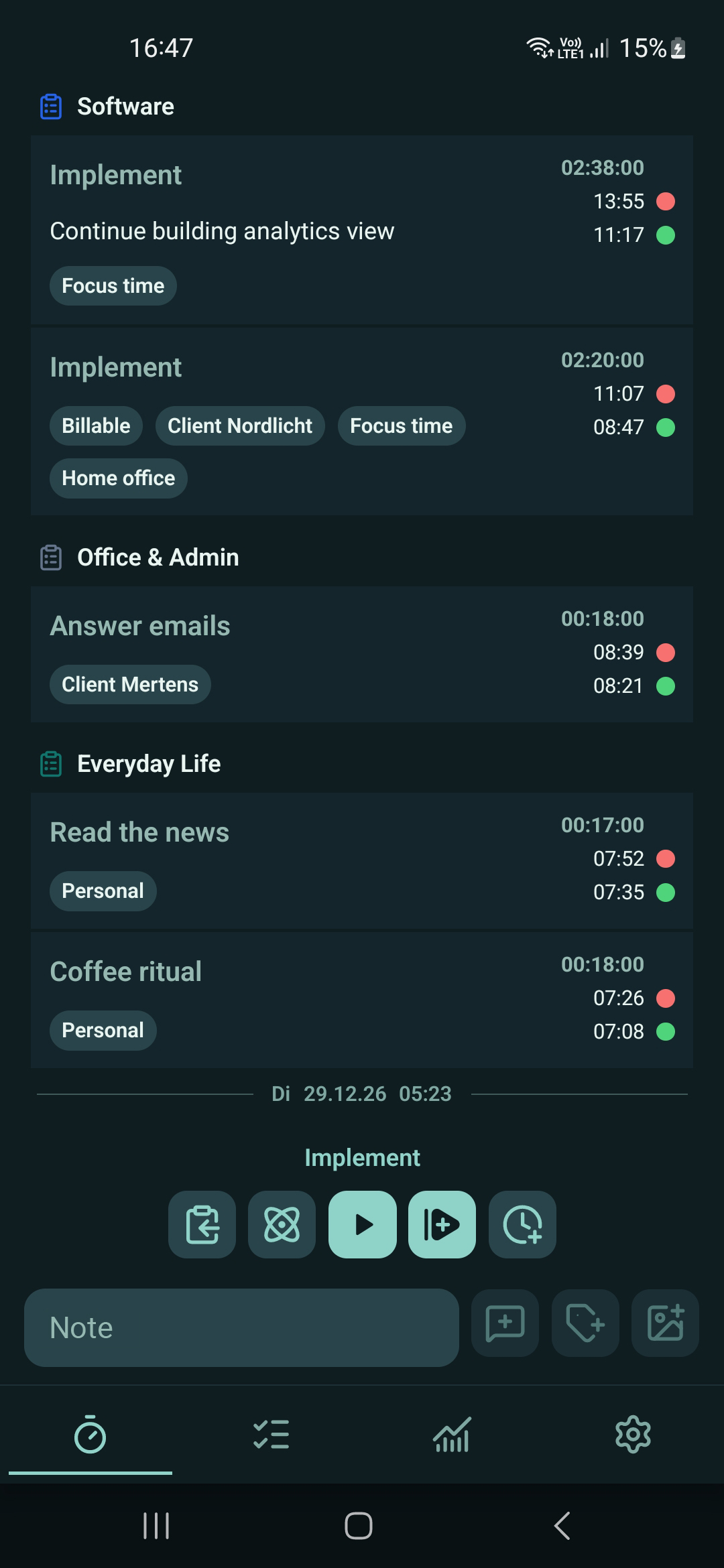
The Timer screen shows time entries from every activity and list.
The controls at the bottom support activity loading, time tracking, and manual time entry.
Tracking history
Section titled “Tracking history”- The history includes every activity and list, not only the loaded activity.
- Each day divider shows the total time from completed entries for that reporting day.
- A list heading appears before each group of entries from the same list.
- Unlisted activities appear under No list.
- Load more retrieves older entries.
Time entries
Section titled “Time entries”- The activity title appears on the left.
- The duration, end time, and start time appear on the right.
- Notes, tags, and images appear below the activity title.
- A running entry updates each second. ZackZack adds the duration to the daily total after tracking stops.
- Archived entries remain visible but read-only.
Tapping an activity title opens the activity description for editing. Tapping elsewhere on an editable card opens the time entry for editing.
Pressing and holding a completed entry selects the entry. A single selection supports starting or deletion. Multiple selections support deletion and merging when possible.
Timer controls
Section titled “Timer controls”The loaded activity appears above the timer controls. Tapping the title opens the activity description for editing.
The lower controls add a note, tags, or images to the running time entry.
Button reference
Section titled “Button reference”The table explains every button visible in the timer area.
| Button | Description |
|---|---|
| Assigns the loaded activity to a list. |
| Creates or loads an activity without starting the timer. |
| Starts the loaded activity or stops the running time entry. Starting the timer without a loaded activity creates an untitled activity. |
| Starts a new untitled activity. ZackZack stops any running entry first. |
| Adds time manually. Without a loaded activity, activity selection or creation is available. |
| Adds a note to the running time entry. |
| Edits tags on the running time entry. |
| Adds images to the running time entry. |
Common questions
Section titled “Common questions”Is manual time entry available later?
Section titled “Is manual time entry available later?”Yes. The clock-with-plus button supports manual time entry. When no activity is loaded, activity selection or creation is available.
This action does not start or stop tracking.
Does loading an activity start the timer?
Section titled “Does loading an activity start the timer?”No. Loading selects the activity for the Timer screen. The play button starts time tracking.
Can the start of a running time entry be corrected?
Section titled “Can the start of a running time entry be corrected?”Yes. The running entry provides start-time editing under Time entry, including the Close gap option.
Why is the running entry missing from the daily total?
Section titled “Why is the running entry missing from the daily total?”ZackZack adds the entry duration to the daily total after tracking stops.
Where does ZackZack store time data?
Section titled “Where does ZackZack store time data?”ZackZack stores time data on the device.